

How Can You Synchronize Digital Calendars Across Multiple Devices?
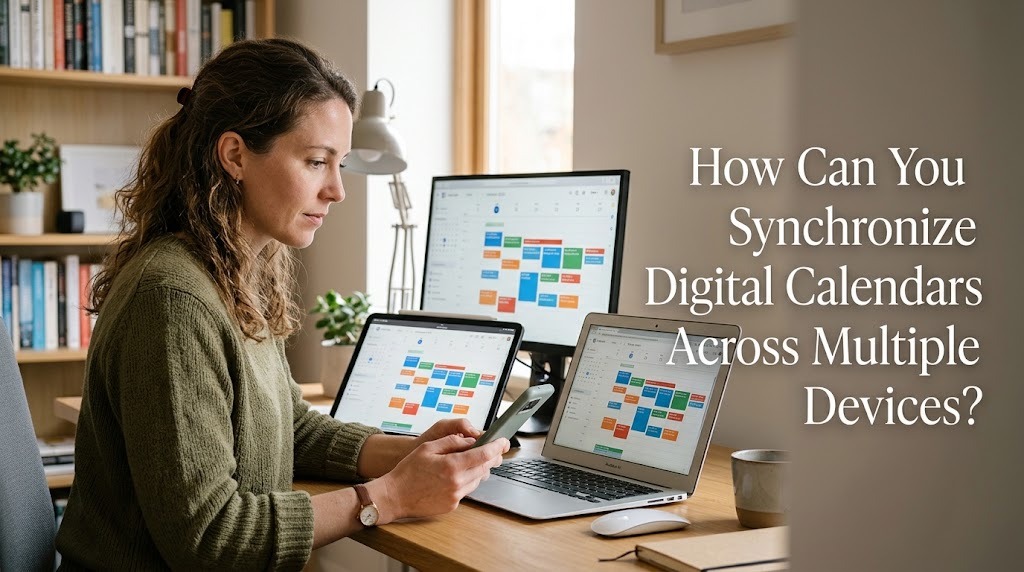
Synchronizing digital calendars across multiple devices helps users manage appointments, work schedules, and personal activities more efficiently. By connecting a calendar to the same account on a smartphone, tablet, and computer, users can access their schedules without manually entering the same information on every device. When synchronization is enabled and working correctly, changes made on one device can appear on other connected devices. This process is useful for students, employees, business owners, and anyone who needs reliable access to an updated schedule throughout the day.
UNDERSTAND HOW DIGITAL CALENDAR SYNCHRONIZATION WORKS
Digital calendar synchronization is the process of keeping calendar information consistent across connected devices. It commonly works through an online account that stores or coordinates events and updates them across supported devices. When a user creates, edits, or deletes an event, the change can be sent to the calendar service and then displayed on other connected devices. The exact process depends on the application, account settings, and internet connection.
For example, a user can create a meeting on a computer and later check its time on a smartphone. If both devices use the same synchronized calendar account, the event should appear on both devices after the update is processed. This reduces the need to maintain separate schedules and lowers the risk of missing important information. Understanding this process is the first step toward creating a reliable calendar system.
USE THE SAME CALENDAR ACCOUNT ON EVERY DEVICE
One of the easiest ways to synchronize digital calendars is to sign in to the same calendar account on every device. Applications such as Google Calendar, Microsoft Outlook Calendar, and Apple Calendar support different synchronization methods depending on the account and device. Using the same account helps connect the relevant calendar information so that events can be accessed in multiple places. However, signing in alone may not be sufficient if synchronization is disabled or the wrong calendar is selected.
Start by opening the calendar application on your primary device and identifying the account associated with your events. Then sign in to that account on your other devices and confirm that the correct calendar is visible. If you use several accounts, such as personal and work accounts, check which calendar receives each new event. This simple step helps prevent appointments from being stored in a calendar that is not available on your other devices.
ENABLE CALENDAR SYNCHRONIZATION SETTINGS
After signing in, check the synchronization settings on each device. On many smartphones, calendar synchronization can be managed through the device's account settings or within the calendar application itself. Make sure the relevant account and calendar are enabled for synchronization. Some devices also allow users to control which calendars appear in the application without disabling synchronization entirely.
If calendar events do not appear on another device, review the settings before adding the events again. Confirm that the application is allowed to access the account and that automatic synchronization is enabled where available. Battery-saving restrictions, background activity settings, or temporary service problems may also delay updates on some devices. Checking these settings can resolve many common synchronization issues without requiring a new calendar account.
CONNECT DIGITAL CALENDARS THROUGH CLOUD SERVICES
Cloud services make it easier to keep digital calendars updated across different devices. When a calendar is connected to a supported online account, its events can be synchronized through the service rather than transferred manually between devices. This is especially useful for people who use a Windows computer, an Android smartphone, and a tablet, or other combinations of supported devices. The available features depend on the calendar provider and the applications being used.
For example, a user can access a Google Calendar account through its application on a smartphone and through a supported browser on a computer. Microsoft Outlook users can similarly access compatible calendar information through supported Outlook applications and services. Apple Calendar can synchronize calendars through iCloud when the relevant settings are enabled. Before choosing a service, confirm that it supports your devices and provides the access options you need.
CHECK INTERNET CONNECTIONS AND AUTOMATIC UPDATES
A stable internet connection is important for synchronizing calendar changes through online services. If a device is offline, new events or edits may remain stored locally until the connection returns, depending on the application. Once the device reconnects, the calendar may synchronize the pending changes automatically. However, the timing and offline capabilities vary between services and devices.
If updates are delayed, check whether the device can access the internet and whether the calendar application is functioning properly. You can also reopen the application or use its refresh option if one is available. Avoid repeatedly creating the same event because a delayed synchronization may cause duplicate appointments when the original update eventually appears. Waiting briefly and checking the calendar account on another device can help determine whether the event has already been saved.
SYNCHRONIZE CALENDARS ACROSS DIFFERENT PLATFORMS
Users who own devices from different manufacturers may need to connect calendars across multiple platforms. For example, someone using an Android phone and a Mac computer can often access the same Google Calendar account through compatible applications or a web browser. Similarly, a user with an iPhone and a Windows computer can use a supported calendar service to access events on both devices. The important requirement is that the calendar provider and applications support the chosen account and synchronization method.
When using different platforms, verify that the correct account is connected and that the relevant calendar is selected for display. Some applications may show several calendars together, while others require users to enable individual calendars manually. Certain features, such as shared calendar editing or specialized notifications, may work differently across platforms. Testing event creation and editing on each device helps confirm that the setup functions as expected.
MANAGE MULTIPLE CALENDAR ACCOUNTS CORRECTLY
Some people maintain separate calendar accounts for work, education, and personal activities. These accounts can often be displayed together in one calendar application, making it easier to understand the full schedule. However, displaying multiple calendars in the same application does not always mean their events are stored in one account. Each calendar may have its own synchronization settings and sharing permissions.
To manage multiple accounts effectively, assign each event to the correct calendar and use clear labels or colors to distinguish different responsibilities. For example, work meetings can remain in a professional account while family appointments are stored in a personal calendar. If you need to share events with colleagues, check that you are sharing the intended calendar rather than unrelated personal information. Keeping accounts organized reduces confusion and helps maintain appropriate privacy.
TROUBLESHOOT COMMON SYNCHRONIZATION PROBLEMS
Calendar synchronization can occasionally fail because of incorrect account settings, weak internet connections, outdated applications, or temporary service interruptions. If an event appears on one device but not another, first confirm that both devices are connected to the intended account. Next, check whether the relevant calendar is enabled and whether synchronization is active. Updating the application or signing in again may help when other basic checks do not resolve the problem.
Before removing an account or clearing application data, make sure important events are safely stored or available through the calendar provider's website. Some locally stored information may not have synchronized, so deleting an account or application without checking could cause data loss. If the problem continues, consult the application's support guidance or check whether the service is experiencing an outage. Careful troubleshooting helps restore synchronization while reducing the risk of losing important appointments.
CONCLUSION
Synchronizing digital calendars across multiple devices begins with using a compatible account, enabling synchronization, and checking that the correct calendars are selected. Cloud services, reliable internet access, and appropriate application settings help keep schedules updated across smartphones, tablets, and computers. Users should also organize multiple accounts carefully and troubleshoot delays before creating duplicate events. By maintaining these settings and reviewing important changes, you can access a more consistent and reliable schedule wherever you work or study.
Recent Posts

Bagaimana Sistem SKS pada Program Kuliah... 22.11.2026/56 View
How Does Technology Make Daily Evaluation... 21.11.2026/86 View

Apa Strategi Menghadapi Kesenjangan antara Kompetensi... 21.11.2026/84 View

Mengapa Inventaris Aset Penting bagi Kelancaran... 21.11.2026/82 View

When Should Musicians Join a Record... 21.11.2026/86 View
